Change your email or password
Change the email you sign in with, change or set a password, and sign out of other devices.
Before you start
- Anyone signed in
- On a phone, tablet or computer
Open Settings, then Account
On your dashboard, tap Settings and open the Account tab.
Change your sign-in email
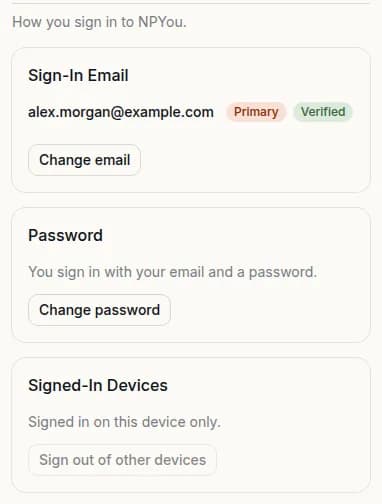
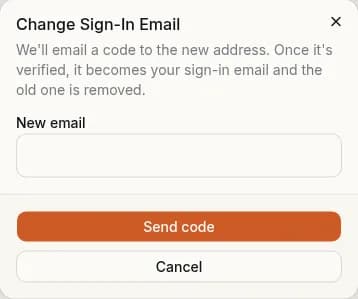
Under Sign-In Email, tap Change email, type the New email and tap Send code. Type the 6-digit code we email to that address and tap Verify. It becomes your sign-in email, and the old address is removed from your account, unless you use it for Google sign-in.
Confirm it’s you
If you signed in a while ago, you are asked to confirm it’s you (your password or a code) before anything changes. This keeps someone using a device you left signed in from taking over your account.
Update a billing contact
Billing emails don’t follow your sign-in email. If you are the billing contact of an organization you help run, the dialog lists it: the owner updates the contact on that organization’s Billing page.
Change or set your password
Under Password, tap Change password, type your Current password, a New password and Confirm new password, then tap Change password. If you sign in with Google or an emailed code and have no password, tap Set a password. Sign me out on other devices starts ticked; keep it if anyone else might know the old password.
Sign out of other devices
Under Signed-In Devices, tap Sign out of other devices, then Sign out. You stay signed in on the device you are using.
If something isn't working
- The code didn’t arrive
- Check your spam folder. After a short wait, tap Send a new code. If the address is wrong, tap Use a different address to fix it.
- It says That address can't be added to your account
- Check the address for a typo. If it is right, that address can’t be used for your account; use another.
- I forgot my current password
- Tap Sign out beside Forgot it? in the dialog, then choose Forgot password on the sign-in page.
- Another address is listed under Other addresses
- You added it to link guest check-ins, or a change didn’t finish. Tap Remove if you don’t want it to sign you in. An address marked Used for Google sign-in stays.
- I got an email about a change I didn’t make
- When your sign-in email changes, the old and the new address both get an email; when an address is added, your sign-in email gets one. If it wasn’t you, contact support right away.
Related
Still stuck?
Reach the team directly. We usually reply within a day.