Ask a question during a meeting
Type your question in the Q&A tab. The facilitator sees it, and so does the room when sharing is on.
Before you start
- Anyone checked in, while the meeting has Q&A on. Some meetings let only members ask.
- Usually on a phone
Check in and open the Q&A tab
The Q&A tab sits beside Details on the meeting page. It appears once the organizers turn Q&A on.
Type your question and submit it
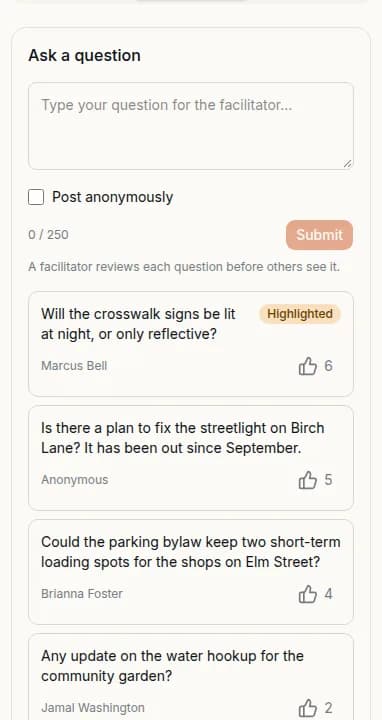
In the Ask a question box, type up to 250 characters and tap Submit. Your questions are under Mine; the room’s are under All.
Post anonymously, when offered
Tick Post anonymously if the meeting allows it. Nobody at the meeting sees your name, facilitators included. The organization’s admins can see who asked, for example to deal with misuse, and exports say only “Anonymous”.
Waiting for review
Some meetings review questions first. Yours shows Waiting for review under Mine until a facilitator approves it; the room doesn’t see it yet.
Upvote questions you want answered
Tap the thumbs-up on someone else’s question. You can’t upvote your own, and upvotes work only when the organizers show questions to everyone. Facilitators can sort by the most upvoted.
If something isn't working
- There is no Q&A tab
- Q&A is off for this meeting, or not on yet. In a members-only meeting, guests see no Q&A at all.
- It says only members can ask
- This meeting limits questions and upvotes to members. If you are a member, sign in and check in as yourself.
- My question won’t send
- There is a limit of a few questions a minute. Wait a moment and try again. Questions close when the meeting ends.
- My question disappeared
- A facilitator dismissed it, or Q&A was switched off. You can ask it again, or raise it in the room.
Related
Still stuck?
Reach the team directly. We usually reply within a day.