All help
Make text bigger and easier to read
Pick a larger font size, a font designed for readability, or a light or dark theme.
Before you start
- Anyone signed in
- On a phone, tablet or computer
Open Settings, then Appearance
On your dashboard, tap Settings and open the Appearance tab.
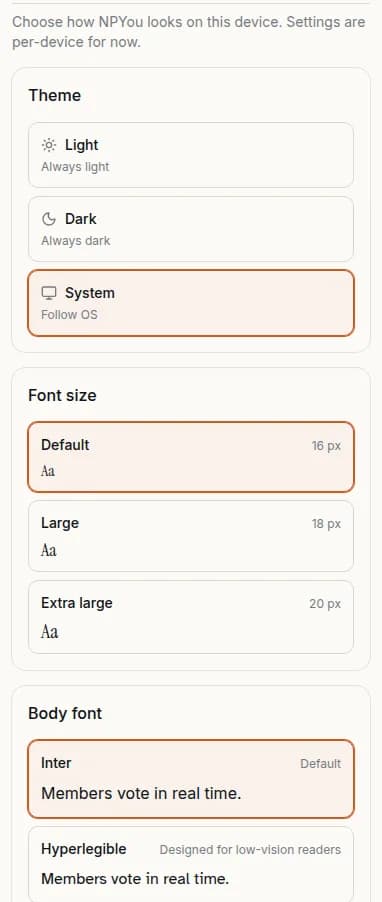
Choose a font size
Under Font size, tap Default, Large or Extra large. The page changes at once, and every page follows.
Choose a body font
Under Body font, Hyperlegible is designed to keep similar letters and numbers apart. Inter is the default.
Choose a theme
Under Theme, pick Light, Dark or System, which follows your device.
Set it on each device
These choices are saved in the browser you are using, so set them again on another phone or computer. Your phone’s own zoom and text size settings work on top of them.
If something isn't working
- It went back to normal on my other phone
- The choice is kept per browser. Open Settings, then Appearance, on that device too.
- The text is still small in emails
- Emails use your mail app’s settings. Increase the text size there.
- Dark mode turns on by itself
- System follows your device’s schedule. Pick Light to keep it light.
Related
Still stuck?
Reach the team directly. We usually reply within a day.