Add, change or remove a meeting’s vote
A meeting’s vote can be added, edited and removed until voting opens, before and during the meeting.
Before you start
- Admins and facilitators
- On a phone, tablet or computer
Add a vote to a meeting without one
The meeting page shows a No vote row with Add vote, before the meeting and on the live panel during it. In Add a vote, write the items (Yes / No or Choice, Add item) and tap Add vote. You see Vote added. The edit page offers Add voting too.

Edit the questions
On the Voting card, tap Edit items. Change titles, switch an item between Yes / No and Choice, add options, Add item, then Save. You see Items saved.
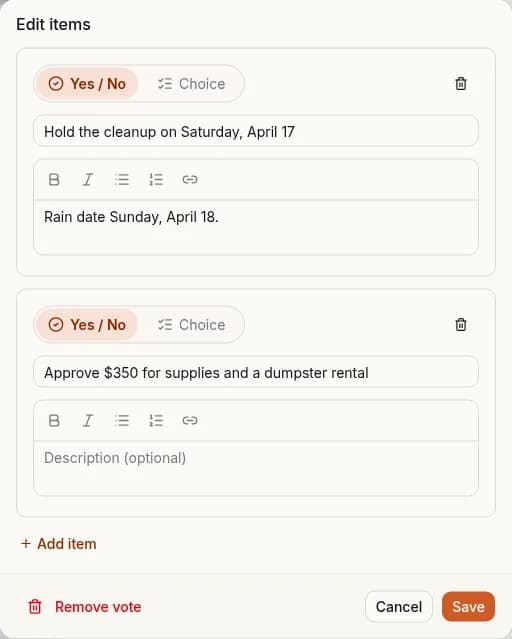
Remove the vote
At the bottom of Edit items, tap Remove vote, then Remove vote again in Remove the vote and its … items? (or Keep it). Only a vote that was never opened can be removed, and only before End Meeting.
Once voting is open
Items can no longer be changed or removed. You can still Add another item and run Vote again on a finished one. Once voting has closed, the meeting’s details are locked.
The monthly vote limit
Meeting votes and polls share your plan’s monthly limit. Before it, the row says how many are left, such as 1 of 2 votes left this month. At the limit it reads Monthly vote limit reached (admins also see See plans). Removing a draft created this month frees its slot; the confirm says so.
If something isn't working
- Edit items isn’t there
- The vote has already been opened, so its items are fixed, or the meeting has ended. After End, a draft that was never opened stays as part of the record.
- It says Monthly vote limit reached
- The meeting can still run without a vote. Remove an unused draft from another meeting to free a slot, wait for next month, or ask an admin to change the plan.
- It says This vote was already removed.
- A colleague removed it from another screen. Refresh the page; you can add a new vote if you need one.
- I want motions on or off for this meeting
- The Member motions switch is on the meeting’s edit page, in the Voting section.
Related
Still stuck?
Reach the team directly. We usually reply within a day.