Run a meeting, start to finish
Start the meeting, share the code, take attendance, run each vote and end the meeting.
Before you start
- Admins and facilitators
- On a phone, tablet or computer. The live panel is built for a phone or tablet at the front of the room.
Tap Start meeting
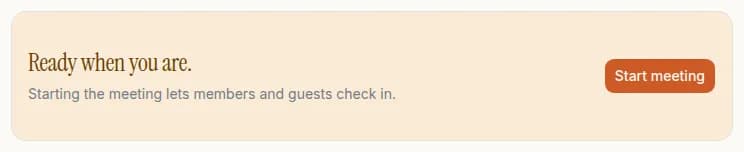
Open the meeting under Meetings. The card reads Ready when you are. Tap Start meeting: check-in opens (and Q&A, if Open Q&A when the meeting starts was ticked).
More than two hours early, it asks Start this meeting now?; tap Start now.
Share the code
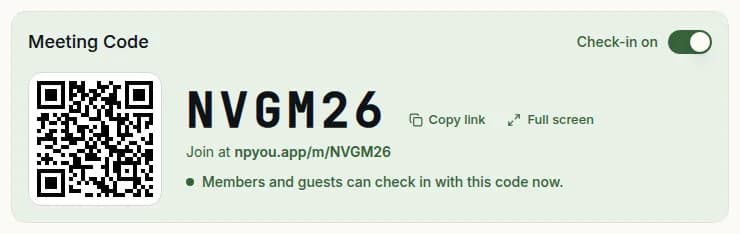
The Meeting Code card shows the code, a QR code and the join address. Tap Full screen beside the code to put Scan to join or enter code on a projector, or Copy link to copy the join link.
The switch at the top of the card is self check-in: it reads Check-in on or Check-in paused. When the doors close, switch it off; people already checked in keep their place, and the code and QR fade. Switch it on to open check-in again.
Take attendance
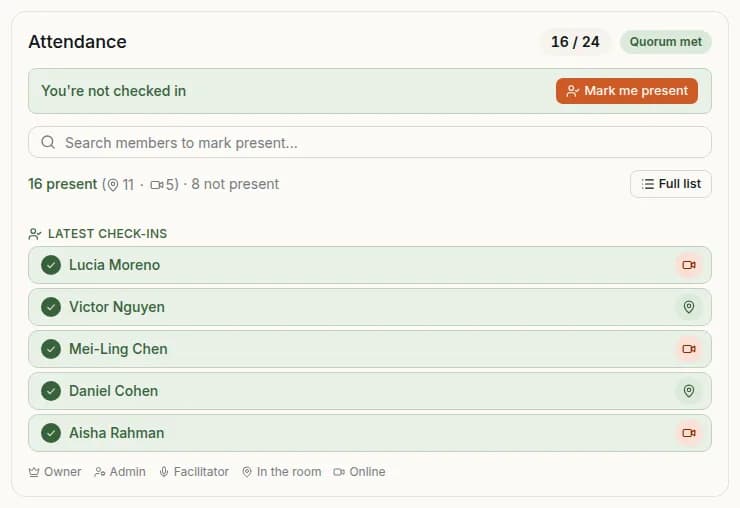
The Attendance card shows the count, the quorum pill (Quorum met or Quorum …) and Latest check-ins. To add someone, type in Search members to mark present... and tap the name; tap again to undo (Remove from attendance?). Full list opens All, Present and Not present.
Voting yourself? Tap Mark me present on the You’re not checked in line; Vote then opens your ballot in a new tab. On a hybrid meeting, the method icon switches a person between In the room and Online.
Open voting
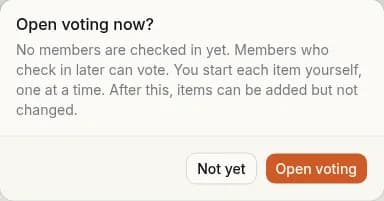
On the Voting card, check the questions with Edit items, then tap Open voting. The confirm Open voting now? reminds you that checked-in members get a notice and that items can be added but not changed afterwards. Tap Open voting.
Run each item, one at a time
Tap Start vote on the first item. The tally updates live. When the room is done, tap Close vote, then Start vote on the next. Each item reads Waiting, Voting now or Done. A vote reaches the tally 5 seconds after the tap, while the voter can still undo it, so give the room a moment before closing.
Re-votes, extra items and motions
- Vote again on a finished item starts a fresh round, with an optional Reason. Earlier rounds stay in the record.
- Add another item adds a question while voting is open.
- Motions from members land in Motions waiting: Accept adds one to the ballot, Reject sends it back with an optional note.
Close voting
When the last item is done, tap Close voting and confirm. This stops all voting, locks the results and records quorum, and it can’t be undone. View results opens the results page.
End the meeting
Tap End meeting, then End meeting in End this meeting?. Self check-in and Q&A stop, and a vote still open closes for good. If nobody ends it, the meeting ends on its own 12 hours after its scheduled end (or its start, with no end time).
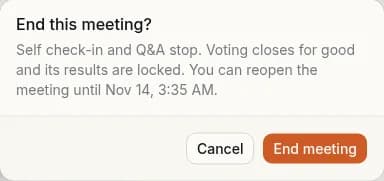
Ended too soon? Reopen
On the Meeting ended card, open the More actions menu (the three dots) and tap Reopen meeting. Check-in and Q&A come back as they were; a closed vote stays closed. It works until the 12-hour mark, and never after an automatic end.
Tidy up: archive (admin)
Once a meeting has ended, choose Archive from the More actions menu on the Meeting ended card, or tap the archive icon in the meetings list. It leaves the list, and its results and records stay exactly as they were. View archive, beside the filters, shows archived meetings; Unarchive brings one back.
If something isn't working
- There’s no Delete for this meeting
- A meeting that has started is part of your organization’s record, so nobody can delete it: its votes, attendance and quorum are what a result is checked against. Archive it once it has ended. A meeting that never started can still be deleted.
- Start meeting is gone: This meeting’s time has passed
- The meeting’s window closed 12 hours after its scheduled end. Tap Edit meeting, give it a new date and time, then start it.
- Open voting is refused
- Voting opens only while the meeting is in session: start the meeting first, or reopen it after an End. This vote was removed. means a colleague removed the draft; refresh the page.
- A member says they can’t vote
- Check that they are on the attendance list (search and tap their name). A Can’t vote icon beside the name means the attendance rule; tap it and choose Allow to vote in this meeting. If an admin revoked their voting rights, only an admin can restore them, on the Members page. Someone checked in as a guest must sign in instead.
- Quorum reads short, but the room is full
- Guests never count toward quorum. Only active members on the attendance list do, and a percentage quorum counts them against all active members, or all but admins if you chose that (then admins present don’t count either).
- Someone arrived after I ended the meeting
- You can still mark them present on the meeting page. The results page and exports flag the row as added by staff after the meeting.
Related
Still stuck?
Reach the team directly. We usually reply within a day.