Create a meeting
Set the time, format and audience, add the agenda and papers, and add a vote if there is one.
Before you start
- Admins and facilitators
- Easiest on a computer
Open the New Meeting form
In your organization’s admin area, open Meetings and tap New meeting. The org dashboard has a New meeting button too.
Fill in the basics
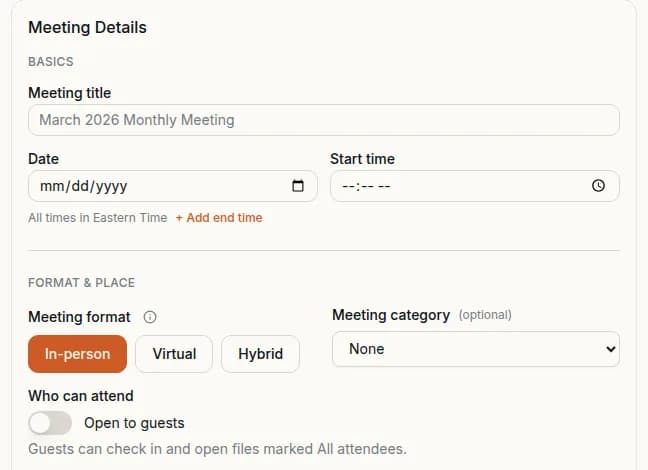
Type the Meeting title, pick the Date and the Start time. Tap + Add end time to set when it ends, and + Spans another day if it runs past midnight.
The end time matters: check-in and Q&A close 12 hours after it (after the start when there is none), and a meeting nobody ends ends on its own then.
Choose the format and who can attend
Under Meeting format, pick In-person, Virtual or Hybrid. A Location or Virtual meeting URL field appears to match.
Who can attend is one switch: Open to guests or Members only. A members-only meeting takes no guest check-ins, and only members see its agenda, files and online link. Meeting category is optional.
Add the agenda and description
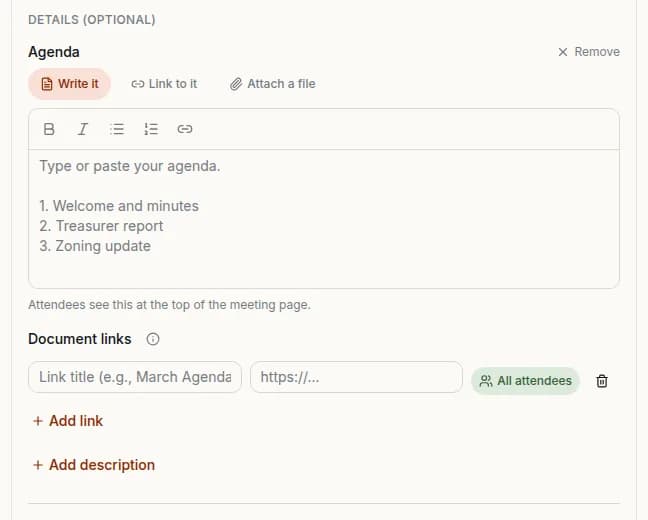
Under Details (optional), tap Add agenda and choose one way to give it: Write it to type it, Link to it to paste a link, or Attach a file and then Choose a file to add a PDF or image (on Starter and up). The agenda file uploads when you create the meeting and is listed first, labelled Agenda. A written agenda opens from the Agenda button on the meeting page.
Add description takes a short note for attendees. The small icons above the box format it: B for bold, I for italic, the two list icons for a bulleted or numbered list, and the chain to add a link (hold a pointer over one to see its name). What you see is what attendees see. The agenda’s Write it box has the same icons. Add document link points at a page or file kept elsewhere.
Attach files
Tap Attach files to add PDFs or images, within your plan’s file size and per-meeting limits. Uploads are on Starter and up; links work on every plan.
Each file and link has its own toggle: All attendees, or a lock for members only. In a members-only meeting the toggles are hidden, because everything is for members.
Add a vote, if the meeting has one
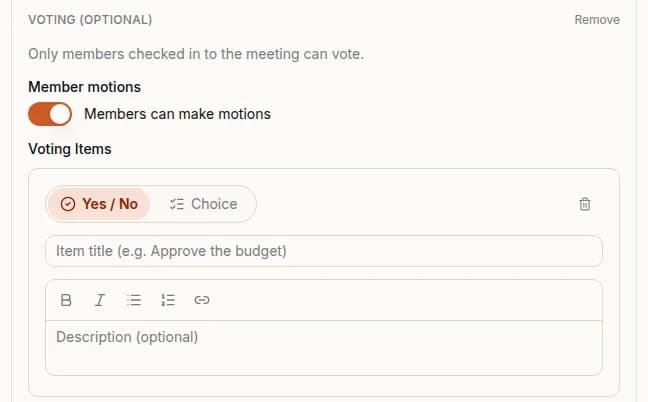
Tap Add voting. Only members checked in to the meeting can vote. Under Voting Items, each item is Yes / No or Choice; tap Add item for the next. A Choice item has Options, Add option and Voters may pick up to.
In an item’s description, the icons above the box format the text: B for bold, I for italic, the two list icons for a bulleted or numbered list, and the chain for a link. Voters see the first five lines with Show more.
The Member motions switch (Members can make motions / Members can’t make motions) starts from your Settings default. A meeting vote counts toward your plan’s monthly vote limit; on a plan with a limit, the section shows how many are left this month.
Decide whether to notify members
Tick Notify members that this meeting was scheduled (in-app, plus email for members who opted in) to tell everyone now. Leave it unticked and nobody is told.
Tap Create meeting
Create meeting saves it and opens the meeting page, where you start it on the day.
Q&A settings aren’t on the form: a new meeting copies the defaults from Settings. Change them on the meeting page with the Q&A settings gear. Later files go on the meeting page’s Documents card with Upload file.
If something isn't working
- Voting says Monthly vote limit reached
- Meeting votes and polls share your plan’s monthly limit. Create the meeting without voting and add a vote next month, remove an unused draft vote elsewhere, or an admin can change the plan.
- Attach files shows View plans instead
- File uploads need Starter and up. On any plan you can still use Add document link to point at a file kept elsewhere.
- I need to change something after creating it
- Tap Edit on the meeting page (after Start, Edit meeting on the row above the live panel, beside Notes). While voting is open the format can’t change, and once voting has closed the details are locked. Files are added and removed on the meeting page, not the edit page. On the edit page, under Agenda (tap Add agenda if there is none yet), Choose a file makes one of the meeting’s files the agenda. It shows once the meeting has a file, on Starter and up.
- The end time won’t save
- The end must be after the start. For a meeting that runs past midnight, tap + Spans another day first.
Related
Still stuck?
Reach the team directly. We usually reply within a day.