Invite members
Share your invite link or a ready-to-send invitation. NPYou sends no invitation emails for you.
Before you start
- Admins
- On a phone, tablet or computer
Tap Invite
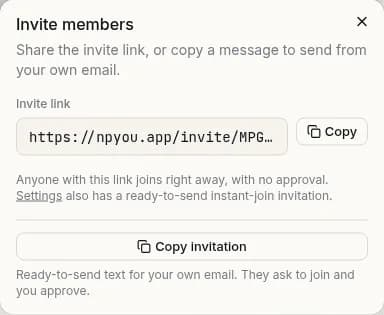
On the Members page (or the org dashboard), tap Invite. The Invite members dialog opens.
Copy the invite link
Under Invite link, tap Copy and paste it into your own email, newsletter or group chat. Anyone who opens it and signs in joins right away, with no approval step.
Or copy a ready-to-send invitation
Copy invitation gives you text that points people to your organization’s page. They ask to join, and you approve. NPYou never emails invitations for you: you send the text yourself.
Manage the link in Settings
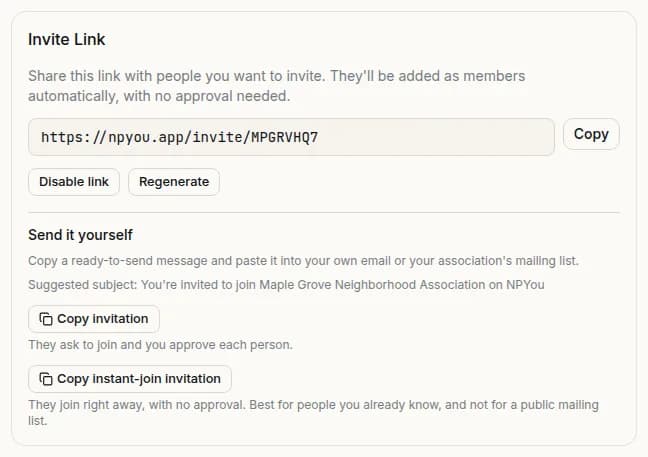
Settings, then Members, holds the Invite Link card: Copy, Disable link, and Regenerate (the old link stops working). Under Send it yourself you find both Copy invitation and Copy instant-join invitation.
Mind the member limit
Every join counts toward your plan’s member limit. At the limit, the link shows This organization has reached its member limit. The Billing page shows how many seats are in use; the owner can change the plan there.
If something isn't working
- Someone says the link is invalid
- The link was disabled or regenerated. Copy the current one from Settings, Members, Invite Link.
- A former member can’t rejoin with the link
- Someone who was deactivated sees Your membership in this organization is inactive. Reactivate them from the Members page instead (the Inactive tab).
- Someone joined, but I wanted to approve them first
- The invite link skips approval. For an approval step, send the Copy invitation text instead, or disable the link.
- A person I declined is back already
- A declined request normally waits 7 days before asking again, but an invite link lets them in at once. Keep the link private if that matters.
Related
Still stuck?
Reach the team directly. We usually reply within a day.